M365 Apps/Office
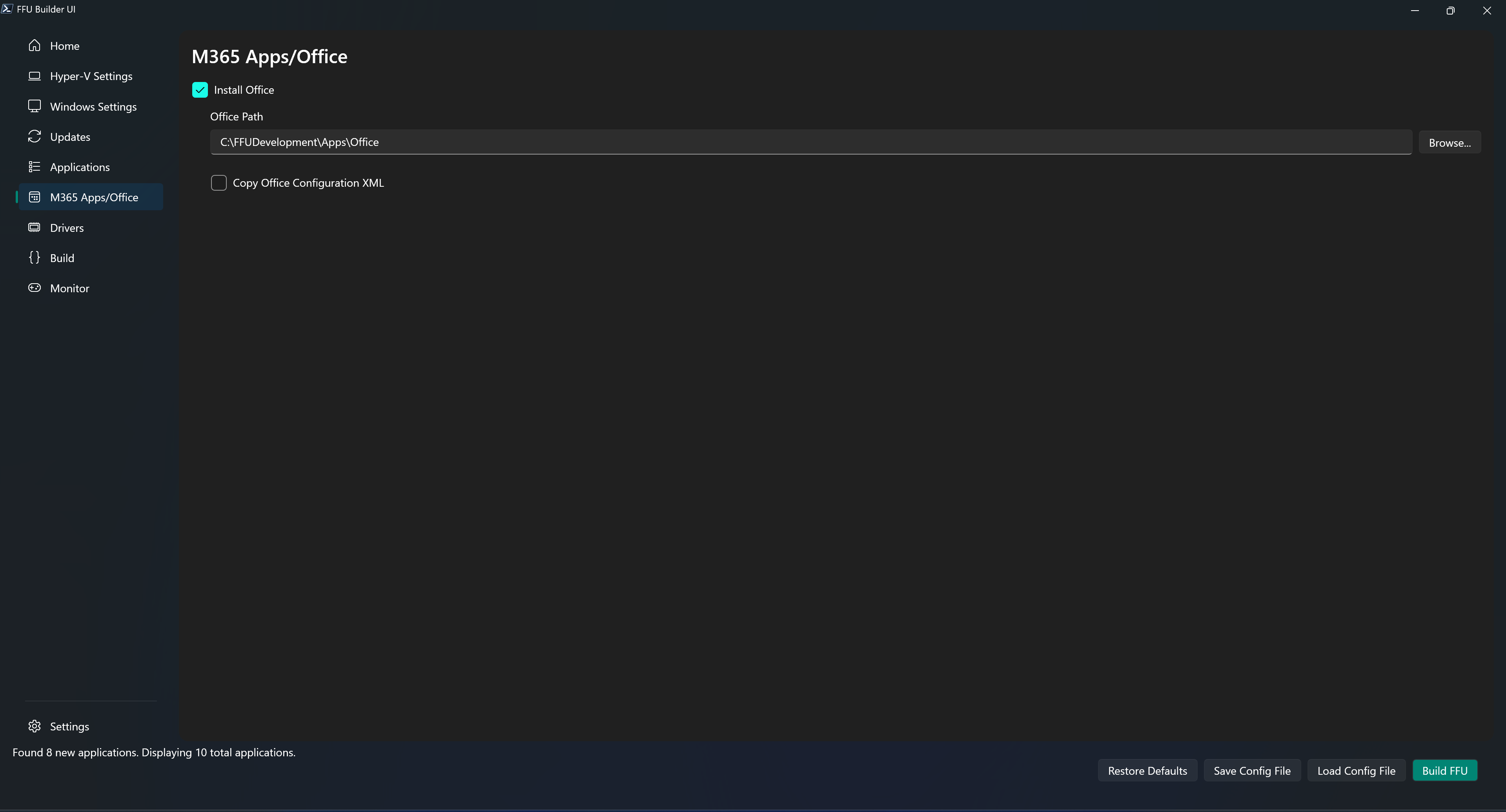
FFU Builder uses the Office Deployment Toolkit (ODT) to install Office. In the .\FFUDevelopment\Apps\Office folder you’ll find two files:
DownloadFFU.xmlDeployFFU.xml
DownloadFFU.xml
DownloadFFU.xml is responsible for the download of Office. It’s invoked by setup.exe /download .\DownloadFFU.xml during the build process. It defaults to downloading the current channel 64-bit version of Office matching the current OS language to C:\FFUDevelopment\Apps\Office.
DownloadFFU.xml contents:
<Configuration ID="efa6df21-a106-428e-8eaa-d89a5dda6030">
  <Add SourcePath="C:\FFUDevelopment\Apps\Office" OfficeClientEdition="64" Channel="Current">
    <Product ID="O365ProPlusRetail">
      <Language ID="MatchOS" />
    </Product>
  </Add>
</Configuration>
If you want to modify the language, you’ll need to change the language ID to the language you wish to download and install.
For more information about deploying languages see: Overview of deploying languages for Microsoft 365 Apps - Microsoft 365 Apps Microsoft Learn
DeployFFU.xml
DeployFFU.xml is responsible for customizing the installation of Office. If you don’t provide a custom XML, it will default to using what’s in DeployFFU.xml. The default configuration will install the 64-bit current channel version of Office with Word, Excel, Powerpoint. Below is what’s currently in DeployFFU.xml:
<Configuration ID="efa6df21-a106-428e-8eaa-d89a5dda6030">
  <Add OfficeClientEdition="64" Channel="Current">
    <Product ID="O365ProPlusRetail">
      <Language ID="MatchOS" />
      <ExcludeApp ID="Access" />
      <ExcludeApp ID="Lync" />
      <ExcludeApp ID="Publisher" />
      <ExcludeApp ID="Bing" />
      <ExcludeApp ID="Teams" />
      <ExcludeApp ID="Outlook" />
    </Product>
  </Add>
  <Property Name="SharedComputerLicensing" Value="0" />
  <Property Name="FORCEAPPSHUTDOWN" Value="FALSE" />
  <Property Name="DeviceBasedLicensing" Value="0" />
  <Property Name="SCLCacheOverride" Value="0" />
  <Updates Enabled="TRUE" />
  <Display Level="None" AcceptEULA="TRUE" />
</Configuration>
Copy Office Configuration XML
If you want to include your own custom XML file for office, check Copy Office Configuration XML and browse to the location of your custom XML file. The path to your custom Office configuration XML file is stored in the OfficeConfigXMLFile parameter. This file gets added to the .\FFUDevelopment\Apps\Office folder and is referenced in the .\FFUDevelopment\Apps\Orchestration\Install-Office.ps1 file.