USB Imaging Tool Creator
USBImagingToolCreator.ps1 is a standalone helper for creating one or more deployment USB drives from a deploy ISO, FFU files, and optional drivers. This is best used when you want to provide remote technicians the FFU file(s) you’ve built and optionally a drivers folder that contains the drivers for the models they will need to manage. They can also provide their own drivers (using Drivers\Make\Model format (e.g Drivers\Dell\Optiplex 7060 (085D))
How the script works
-DeployISOPathis required and should point to the deploy ISO file.- The script uses the parent folder of that ISO as its working root.
- FFU files are copied from
<ISO parent>\FFU(all.ffufiles, recursive). - Drivers are copied from
<ISO parent>\Drivers(recursive) when present. - If drivers are not found, the script creates an empty
Driversfolder on each deploy partition. -DisableAutoPlayis optional and temporarily disables AutoPlay for the current user during media creation. This is useful in situations where you see File Explorer pop ups as it’s building the USB drive.
Network share workflow (admin/technician)
For a shared workflow, stage one folder on a share with the deploy ISO and content that technicians should copy to USB drives.
If you do not already have a deployment ISO in the staging location, create one first using Create PE Media. This lets admins quickly generate the deploy ISO and then stage it for technicians using USBImagingToolCreator.ps1.
Example layout:
\\Server\FFUStaging\
  WinPE_FFU_Deploy.iso
  FFU\
    <image files>.ffu
  Drivers\
    <optional driver content>
Run from an elevated PowerShell session:
.\USBImagingToolCreator.ps1 -DeployISOPath "\\Server\FFUStaging\WinPE_FFU_Deploy.iso" -DisableAutoPlay
The script passes -DeployISOPath directly to Mount-DiskImage, so use a path the local Windows host can mount.
Example folder structure
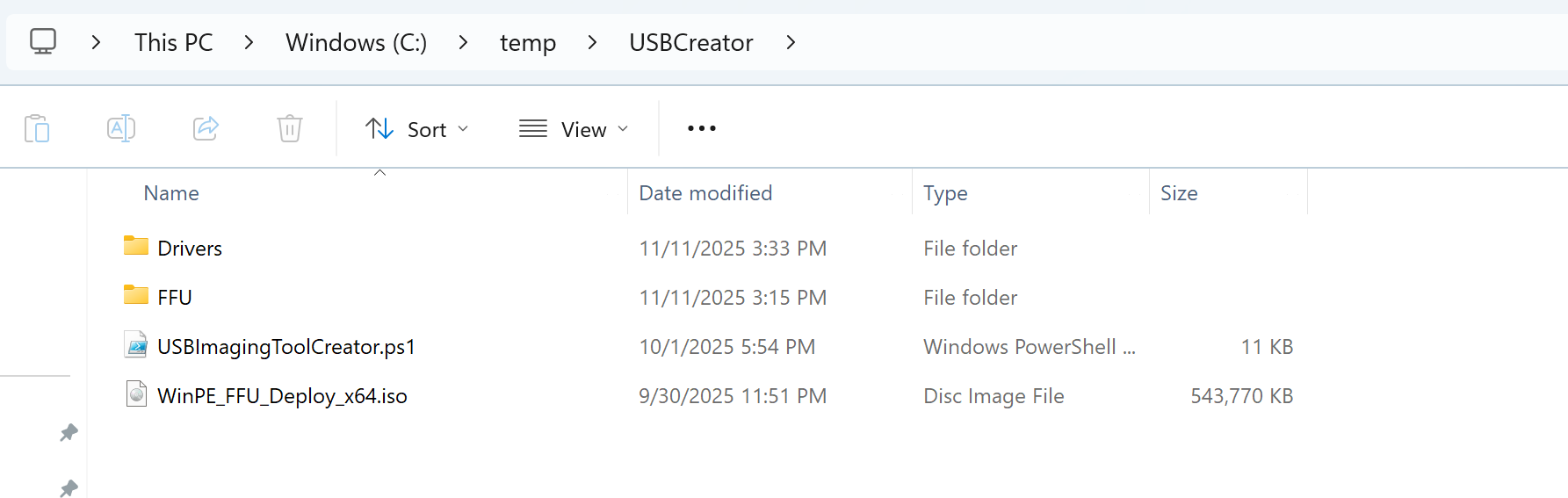
In this example a folder named USBCreator was made and the Drivers and FFU folders as well as the WinPE_FFU_Deploy_x64.iso and USBImagingToolCreator.ps1 files were copied from the FFUDevelopment folder to this new folder.
What happens when you run it
- Detects disks with media type Removable media or External hard disk media.
- Prompts for a single drive selection or an all-drives selection.
- Stops
mmcanddiskpartprocesses to reduce drive lock issues. - Erases each selected disk and rebuilds it as MBR with:
Bootpartition (2 GB, FAT32, active)Deploypartition (remaining space, NTFS)
- Mounts the deploy ISO and copies all ISO content to every
Bootpartition. - Copies FFU content to every
Deploypartition. - Copies driver content into
Deploy\Drivers(or creates an emptyDriversfolder). - Dismounts the ISO and reports completion.
Warning
Selected disks are fully erased (
Clear-Disk -RemoveData -RemoveOEM), so verify drive selection carefully, especially when using the all-drives option.
Logging and progress
- Progress is shown in the PowerShell progress UI.
Script.logis written in the same folder as the deploy ISO (the working root folder).