Windows Settings
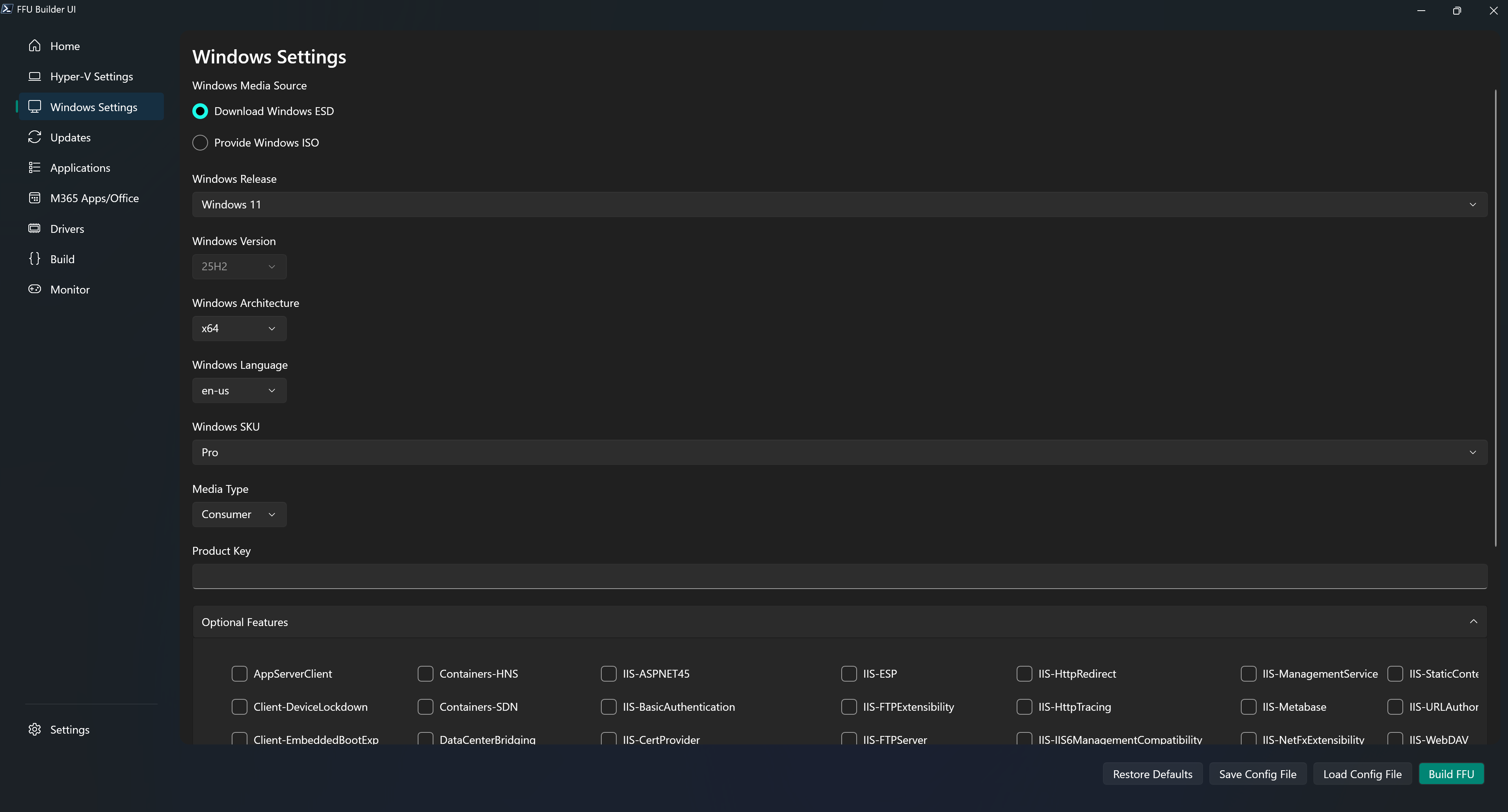
Windows Media Source
Download Windows ESD
Download Windows ESD will download the ESD file provided from the Windows Media Creation Tool
Provide Windows ISO
You can provide your own Windows ISO (Client or Server). Good for scenarios where you want to deploy Enterprise or Education SKUs and have a product key you want to use (MAK or KMS).
Windows ISO Path
Path to Windows ISO file.
Tip
Should I provide my own ISO, or let FFU Builder download the media
It’s recommended to use the latest ESD in most scenarios. It gets updated a couple of days after Patch Tuesday (so roughly the 2nd Thursday or Friday). See the Media Type section below for a better understanding of business and consumer media and how it impacts Subscription Activation.
Windows Release
Can be 10, 11, different Server values, or LTSB/LTSC.
Windows Version
String value of the Windows version. Default is 25H2. If an ISO is not specified, this drop down is disabled. If an ISO is specified, you can select from the drop down which version of Windows you’re installing. The Windows version is used in quite a few different scenarios (HP driver downloads, VHDXCaching, MCT media downloads, FFU file naming, and cumulative update downloads), so it’s important you specify the correct Windows Version.
Windows Architecture
String value of x86, x64, or arm64. Depending on the Windows release and Windows version, the UI will only specify the supported architecture types for a specific Release/Version combo.
Windows Language
String value in language-region format (e.g., en-us). This is used to identify which language of media to download. Default is en-us.
Note
These are the supported languages that can be used with the
-WindowsLangparameter when downloading the Windows MCT\ESD filear-sa bg-bg cs-cz da-dk de-de el-gr en-gb en-us es-es es-mx et-ee fi-fi fr-ca fr-fr he-il hr-hr hu-hu it-it ja-jp ko-kr lt-lt lv-lv nb-no nl-nl pl-pl pt-br pt-pt ro-ro ru-ru sk-sk sl-si sr-latn-rs sv-se th-th tr-tr uk-ua zh-cn zh-tw
Windows SKU
Edition of Windows 10/11/LTSC/Server to be installed.
Note
The following SKUs are supported
Home Home N Home Single Language Education Education N Pro Pro N Pro Education Pro Education N Pro for Workstations Pro N for Workstations Enterprise Enterprise N Enterprise 2016 LTSB Enterprise N 2016 LTSB Enterprise LTSC Enterprise N LTSC IoT Enterprise LTSC IoT Enterprise N LTSC Standard Standard (Desktop Experience) Datacenter Datacenter (Desktop Experience)
Media Type
String value of either business or consumer. This is used to identify which media type to download if not providing an ISO. Default is consumer
Tip
Recommendation on media type to use
Windows media comes in two types: business or consumer.
Windows media can be obtained from a few different sources: Volume Licensing Service Center (VLSC – now available at admin.microsoft.com), Microsoft Visual Studio Downloads, or the Windows Media Creation Tool.
The
BuildFFUVM.ps1script will allow you to pass whichever type of media you want from whatever source you want using the -ISOPath parameter; however, it’s recommended that you use consumer media, not business/VL. This is because Subscription Activation will fail if the media is mismatched from the key in the firmware.If you plan on using a MAK or KMS to activate, you can use media from VLSC, but if you expect the device to activate automatically and upgrade to Enterprise or Education SKUs via Subscription Activation, you must use consumer media. To use a MAK/KMS key to activate, you must provide the -
ProductKey XXXXX-XXXXX-XXXXX-XXXXX-XXXXXparameter.
Product Key
Product key for the Windows edition specified in WindowsSKU. This will overwrite whatever SKU is entered for WindowsSKU. Recommended to use if you want to use a MAK or KMS key to activate Enterprise or Education. If using VL media instead of consumer media, you’ll want to enter a MAK or KMS key here.
Optional Features
A list of optional features that you can enable for the version of Windows you’re installing (e.g. netfx3; TFTP).