Apps Script Variables
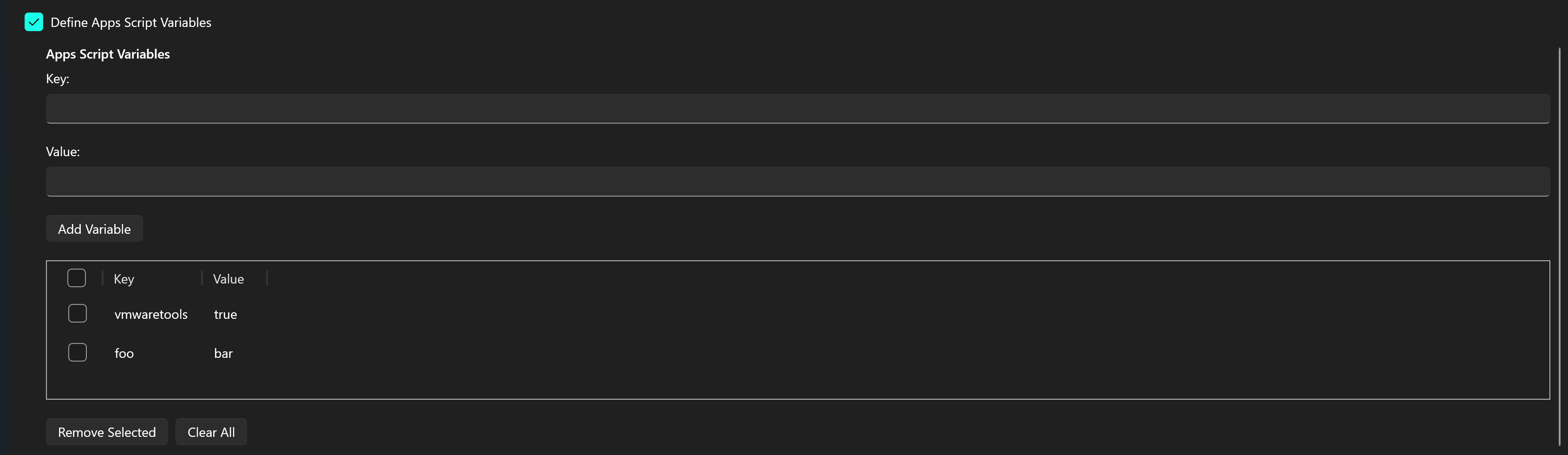
Apps Script Variables are key value pairs that are used to create a hashtable that is passed to the BuildFFUVM.ps1 script (stored in the $AppScriptVariables parameter as a hashtable). At build time, BuildFFUVM.ps1 will export the $AppsScriptVariables hashtable to an AppsScriptVariables.json file in the $OrchestrationPath folder ($AppsPath\Orchestration). You can also manually create your own AppsScriptVariables.json file and place it in the $AppsPath\Orchestration folder.
In the VM, the Orchestrator.ps1 file will call Invoke-AppsScript.ps1 if AppsScriptVariables.json exists. Invoke-AppsScript.ps1 must be modified to handle your variables.
Invoke-AppsScript.ps1 has the following commented example of how to modify the file:
# Example of how to use the AppsScriptVariables hashtable to control script execution

# Note: The UI saves the values as strings, so if you type true for a value, it'll save to the config file as a string, not boolean

# Example: Check if a variable named 'foo' is set to string 'bar' and run a script accordingly
# if ($AppsScriptVariables['foo'] -eq 'bar') {
#     Write-Host "Foo would have installed"
# }
# else {
#     Write-Host "Foo would not have installed"
# }

# Example: Check if a variable named 'Teams' is set to string 'true' and run a script accordingly
# if ($AppsScriptVariables['Teams'] -eq 'true') {
#     Write-Host "Teams would have been installed"
# }
# else {
#     Write-Host "Teams would not have been installed"
# }
Why use Apps Script Variables?
This allows for you to create a dynamic task sequence via a PowerShell script with simple if statements to run apps, commands, etc. This is all driven by your FFUConfig.json file. For example, the following FFUConfig.json file contains an AppsScriptVariables hashtable of foo and vmwaretools like the screenshot above. If you build servers that require vmware tools, you may set the value to true. However there may be situations where you don’t need vmwaretools installed. If that’s the case, you set vmwaretools to false. This allows for your Invoke-AppsScript.ps1 file to stay the same and all you have to do is adjust the variables.
s{
  "AdditionalFFUFiles": [],
  "AllowExternalHardDiskMedia": false,
  "AllowVHDXCaching": false,
  "AppListPath": "C:\\FFUDevelopment\\Apps\\AppList.json",
  "AppsPath": "C:\\FFUDevelopment\\Apps",
  "AppsScriptVariables": {
    "foo": "bar",
    "vmwaretools": "true"
  },
  "BuildUSBDrive": false,
  "CleanupAppsISO": true,
  "CleanupDeployISO": true,
  "CleanupDrivers": false,
  "CompactOS": true,
  "CompressDownloadedDriversToWim": false,
  "CopyAdditionalFFUFiles": false,
  "CopyAutopilot": false,
  "CopyDrivers": false,
  "CopyOfficeConfigXML": false,
  "CopyPEDrivers": false,
  "CopyPPKG": false,
  "CopyUnattend": false,
  "CreateDeploymentMedia": true,
  "CustomFFUNameTemplate": "{WindowsRelease}_{WindowsVersion}_{SKU}_{yyyy}-{MM}-{dd}_{HH}{mm}",
  "Disksize": 53687091200,
  "DownloadDrivers": false,
  "DriversFolder": "C:\\FFUDevelopment\\Drivers",
  "DriversJsonPath": "C:\\FFUDevelopment\\Drivers\\Drivers.json",
  "FFUCaptureLocation": "C:\\FFUDevelopment\\FFU",
  "FFUDevelopmentPath": "C:\\FFUDevelopment",
  "FFUPrefix": "_FFU",
  "InjectUnattend": false,
  "InstallApps": true,
  "InstallDrivers": false,
  "InstallOffice": false,
  "InstallWingetApps": false,
  "ISOPath": "",
  "LogicalSectorSizeBytes": 512,
  "MaxUSBDrives": 5,
  "MediaType": "Consumer",
  "Memory": 4294967296,
  "OfficeConfigXMLFile": "",
  "OfficePath": "C:\\FFUDevelopment\\Apps\\Office",
  "Optimize": true,
  "OptionalFeatures": "",
  "OrchestrationPath": "C:\\FFUDevelopment\\Apps\\Orchestration",
  "PEDriversFolder": "C:\\FFUDevelopment\\PEDrivers",
  "Processors": 4,
  "ProductKey": "",
  "PromptExternalHardDiskMedia": true,
  "RecoveryPartitionDriveLetter": "R",
  "RemoveApps": false,
  "RemoveFFU": false,
  "RemoveUpdates": false,
  "SystemPartitionDriveLetter": "S",
  "Threads": 5,
  "UpdateADK": true,
  "UpdateEdge": true,
  "UpdateLatestCU": true,
  "UpdateLatestDefender": true,
  "UpdateLatestMicrocode": false,
  "UpdateLatestMSRT": true,
  "UpdateLatestNet": true,
  "UpdateOneDrive": true,
  "UpdatePreviewCU": false,
  "USBDriveList": {},
  "UseDriversAsPEDrivers": false,
  "UserAppListPath": "C:\\FFUDevelopment\\Apps\\UserAppList.json",
  "Verbose": false,
  "VMLocation": "C:\\FFUDevelopment\\VM",
  "VMSwitchName": "External",
  "WindowsArch": "x64",
  "WindowsPartitionDriveLetter": "W",
  "WindowsLang": "en-us",
  "WindowsRelease": 11,
  "WindowsSKU": "Pro",
  "WindowsVersion": "25H2"
}
Example command line to run with vmwaretools set to false and foo set to foo. This will create the AppsScriptVariables.json file in the Orchestration folder with the updated values of foo=foo and vmwaretools=false without the need to modify the config file.
.\BuildFFUVM.ps1 -configFile 'C:\FFUDevelopment\config\FFUConfig.json' -appsScriptVariables @{foo='foo'; vmwaretools='false'}